
Muhammad Najash
- June 8, 2026
- SEO
Technical SEO for Beginners: Complete Guide
Table of Contents
- What is Technical SEO?
- How Search Engines Work
- Website Crawling Optimization
- XML Sitemaps Explained
- Website Indexing Optimization
- URL Structure Best Practices
- Website Speed & Core Web Vitals
- Mobile SEO Optimization
- HTTPS and Website Security
- Structured Data & Schema Markup
- Fixing Technical SEO Errors
- Essential Technical SEO Tools
- Technical SEO Checklist for Beginners
- Common Technical SEO Mistakes to Avoid
- Conclusion
Key Takeaways:
- Technical SEO makes your website readable and rankable before content or backlinks matter.
- Google crawls, indexes, then ranks — fixing problems at each stage unlocks your traffic.
- Core Web Vitals are official Google ranking signals — failing them directly costs you positions.
- Most critical errors are free to find and fix using Google Search Console.
- Run a technical SEO checklist every 60 days to stay ahead of problems before they hurt traffic.
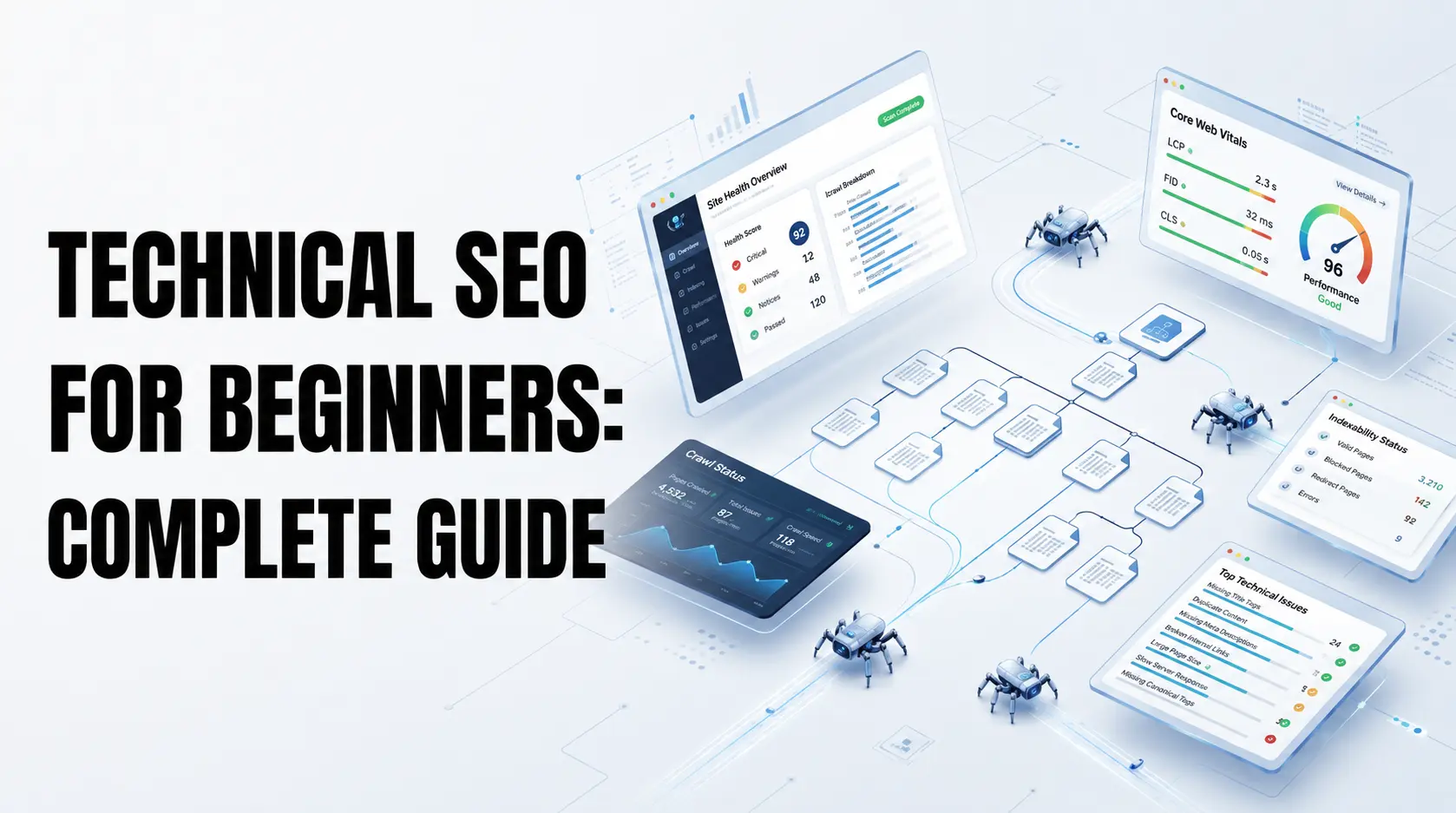
Technical SEO for beginners means making your website easy for Google to find, read, and rank — without touching a single word of your content. It covers the backend: how your pages are crawled, how fast they load, whether they work on mobile, and whether Google can actually index them. If any of these break, your content never ranks — no matter how good it is. This guide walks you through every major technical SEO concept in plain language, with exactly what to check and fix.
What is Technical SEO?
Technical SEO is the foundation of every successful SEO strategy — and it has nothing to do with your words.
It is the process of making sure your website is built in a way that search engines can easily crawl, index, and understand. Think of it as the infrastructure behind your content.
Technical SEO Definition
Technical SEO means optimising your website’s technical elements — server settings, HTML code, site architecture, and page speed — to improve its visibility in search engines.
It does not replace content or link building. It makes content and link building actually work.
Benefits of Technical SEO
When your technical SEO is healthy, you get:
- More pages indexed — Google finds and stores all your important content
- Higher rankings — Fast, crawlable, secure pages rank above slow, broken ones
- Better user experience — Pages that load quickly and work on mobile keep visitors longer
- AI citation potential — Well-structured sites are more likely to appear in AI Overviews and ChatGPT answers
How Search Engines Work
Before you can fix technical SEO, you need to understand the three things Google does with every website: crawl, index, and rank.
Each stage is a filter. If your site fails at crawling, it never gets indexed. If it fails at indexing, it never ranks. Fix the right stage first.
Crawling
Crawling is how Google discovers your pages. Google sends automated bots called “crawlers” or “spiders” to visit websites, read their content, and follow their links.
Every time a crawler visits your site, it collects data from each page and moves to the next via internal links. If a page has no links pointing to it, or if your robots.txt blocks it, the crawler never finds it.
Your job is to make crawling as smooth and efficient as possible. That means clear navigation, working links, and no accidental blocks in your settings.
Indexing
Indexing is how Google stores your pages in its database. After crawling a page, Google decides whether to add it to its index — the massive list of pages it can show in search results.
Not every crawled page gets indexed. Google skips thin content, duplicate pages, pages marked “noindex,” and pages it considers low quality. A page that is not indexed cannot rank — full stop.
Ranking
Ranking is how Google decides which indexed pages to show — and in what order. Once your page is indexed, Google scores it against hundreds of signals: relevance, authority, page experience, and technical quality.
Technical SEO directly influences ranking by improving page experience signals like Core Web Vitals, HTTPS status, and mobile usability. These are confirmed Google ranking factors.
Website Crawling Optimization
Crawling optimization means removing every obstacle that stops Google from reaching your important pages.
If Google cannot crawl a page, nothing else matters. Start here before touching speed, schema, or any other technical area.
Robots.txt
Your robots.txt file tells Google which pages and folders it can and cannot crawl. It lives at yourdomain.com/robots.txt and is one of the first things Google reads when it visits your site.
A correct robots.txt allows all important pages and blocks only things like admin panels, login pages, and duplicate filtered URLs. One wrong line — for example, Disallow: / — blocks your entire website from Google.
Check your robots.txt file immediately after any theme update, plugin change, or site migration. These are the moments when accidental blocks most often appear.
How to check it:
- Go to yourdomain.com/robots.txt in your browser
- Look for any
Disallow:lines that cover your blog posts, service pages, or homepage - Use Google Search Console → URL Inspection tool — enter any URL to confirm whether it is blocked by robots.txt.
Crawl Budget
Crawl budget is the number of pages Google will crawl on your site within a given period. Larger sites have bigger budgets. Smaller sites get fewer crawls per day.
You waste crawl budget on low-value pages — thin category pages, session IDs in URLs, infinite scroll parameters, and outdated tags. Google spends time on those instead of your real content.
Fix crawl budget by blocking low-value URLs in robots.txt and keeping your site architecture clean. For most small business sites under 100 pages, crawl budget is not a crisis — but it still matters.
Internal Linking
Internal links are the roads that guide Google’s crawlers from one page to another on your site. A page with no internal links pointing to it — called an orphan page — may never get crawled.
Every important page on your site should have at least one internal link pointing to it from another page Google already crawls. Use descriptive anchor text that tells Google what the destination page is about.
Good internal linking also distributes ranking strength (called PageRank) across your site. Pages that receive more internal links tend to rank better.
XML Sitemaps Explained
An XML sitemap is a file that lists every important page on your website — it helps Google find your content faster.
What is an XML Sitemap?
An XML sitemap is a structured file (in .xml format) that tells search engines which pages exist on your site, when they were last updated, and how important they are relative to each other.
It sits at yourdomain.com/sitemap.xml and acts as a map Google can follow instead of discovering pages only through links. WordPress plugins like Yoast SEO and Rank Math generate it automatically.
Why XML Sitemaps Matter
A sitemap speeds up discovery of new content — especially for new websites with few incoming links or for sites that publish frequently.
Without a sitemap, Google may take weeks to discover a new blog post. With a sitemap submitted in Google Search Console, discovery can happen in hours.
Submit your sitemap in Search Console under Sitemaps, then check the report for any errors — pages that are in the sitemap but returning 404s or blocked by robots.txt are a common problem.
Website Indexing Optimization
Indexing optimization means making sure the right pages are in Google’s index — and the wrong ones are not.
Many sites accidentally have too few indexed pages (blocking good content) or too many (diluting quality with thin pages). Both hurt rankings.
Indexability
Indexability means a page is accessible to Google and meets the quality threshold to be stored in the index. A page must be crawlable, return a 200 status code, not have a noindex tag, and have enough content to be considered useful.
Use Google Search Console’s URL Inspection tool to check any page’s indexability. Type the URL in the search bar at the top — Google tells you exactly whether the page is indexed and why or why not.
Noindex Tags
A noindex tag is a signal you place in a page’s HTML that tells Google “do not include this page in search results.” It looks like this in the <head> section:
<meta name=”robots” content=”noindex”>
Noindex is useful for thank-you pages, login pages, and admin pages you do not want ranked. But it is devastating when applied accidentally to blog posts, service pages, or your homepage.
Audit your most important pages using the URL Inspection tool to confirm none of them carry an accidental noindex tag.
Canonical Tags
A canonical tag tells Google which version of a page is the “main” one when multiple similar URLs exist. It prevents duplicate content from splitting your ranking power across multiple URLs.
For example, if your blog post exists at both /blog/post-name and /post-name?source=email, a canonical tag on both pointing to /blog/post-name tells Google to credit only one version.
Every page on your site should have a canonical tag — either self-referencing (pointing to itself) or pointing to the preferred version. Most SEO plugins add these automatically.
URL Structure Best Practices
Your URL is one of the first things Google reads when it evaluates a page — make it clean, short, and descriptive.
SEO-Friendly URLs
An SEO-friendly URL tells both Google and the reader exactly what the page is about before they click. It uses real words, not numbers or random characters.
Good URL: muhammadnajash.com/technical-seo-guide-beginners Bad URL: muhammadnajash.com/p=2947?cat=3
URLs with the target keyword in them consistently outperform URLs without keywords in competitive SERPs. Keep them short — under 60 characters where possible.
URL Best Practices
Follow these rules for every URL on your site:
- Use hyphens between words, never underscores (
technical-seonottechnical_seo) - Use lowercase letters only — uppercase creates duplicate URL issues on some servers
- Remove stop words where possible: “a,” “the,” “and,” “in” (except when they change meaning)
- Include your primary keyword — place it as close to the domain as possible
- Never change a URL without setting up a 301 redirect from the old version
Website Speed & Core Web Vitals
Page speed is a confirmed Google ranking signal — and Core Web Vitals are the specific metrics Google uses to measure it. A slow website loses rankings to a faster one, even if all other factors are equal. The March 2026 Google Core Update reinforced the role of Core Web Vitals in rankings — performance has become a filter: if your metrics are in the red, even excellent content can be held back
Largest Contentful Paint (LCP)
LCP measures how long it takes for the largest visible element on a page to load — usually a hero image, a headline, or a featured photo.
- Good: Under 2.0 seconds (tightened in March 2026)
- Needs improvement: 2.0 – 4.0 seconds
- Poor: Over 4.0 seconds
The most common LCP fix is compressing your images before uploading. Use a free tool like Squoosh to reduce image size without visible quality loss. Also add preload tags for your hero image — it is the single highest-impact LCP fix available in 2026.
Interaction to Next Paint (INP)
INP measures how fast your page responds when a user interacts with it — clicking a button, opening a menu, or tapping a link.
- Good: Under 200 milliseconds
- Needs improvement: 200 – 500 milliseconds
- Poor: Over 500 milliseconds
INP replaced First Input Delay (FID) as an official Core Web Vital in March 2024. Pages with too many third-party scripts — live chat widgets, pop-ups, ad trackers — tend to fail this metric.
Cumulative Layout Shift (CLS)
CLS measures how much your page “jumps around” while it loads — images popping in, banners shifting text, fonts loading late and pushing content down.
- Good: Under 0.1
- Needs improvement: 0.1 – 0.25
- Poor: Over 0.25
Fix CLS by adding explicit width and height attributes to all images and embeds. This tells the browser to reserve the right amount of space before the element loads.
How to check all three: Go to Google PageSpeed Insights → enter your URL → scroll to “Diagnose performance issues” for specific fixes.
Mobile SEO Optimization
Google ranks the mobile version of your website first — this is called mobile-first indexing and it has been the default since 2023.
If your site looks great on desktop but breaks on a phone screen, Google sees the broken version. That directly impacts your rankings.
Mobile-First Indexing
Mobile-first indexing means Google primarily uses your mobile site to determine rankings — not your desktop version. If content appears on desktop but is hidden or removed on mobile, Google may not see it at all.
This affects text, images, structured data, and internal links. Make sure everything important on your desktop version also appears on mobile.
Check your mobile status in Google Search Console under Settings → Crawling → make sure it reads “Google crawls your site as Googlebot Smartphone.”
Responsive Design
Responsive design is the simplest and most reliable way to pass mobile-first indexing. A responsive site uses a single HTML codebase that adapts to any screen size automatically.
Most modern WordPress themes are responsive by default. But check by testing your site on a real phone — not just by resizing a desktop browser window, which is not an accurate test.
Use Google’s Mobile Usability report in Search Console to find specific errors: text too small to read, clickable elements too close together, or content wider than the screen.
HTTPS and Website Security
HTTPS is a confirmed Google ranking signal — and browsers mark HTTP sites as “Not Secure,” which kills user trust instantly.
What is HTTPS?
HTTPS (HyperText Transfer Protocol Secure) is a secure version of HTTP that encrypts data sent between your website and your visitor’s browser. The padlock icon in a browser’s address bar shows a site is using HTTPS.
It works through an SSL/TLS certificate installed on your server. Most hosting providers — including Hostinger, SiteGround, and Cloudflare — offer free SSL certificates through Let’s Encrypt.
Why HTTPS Matters
Google confirmed HTTPS as a ranking signal in 2014 and has strengthened that position every year since.
Beyond rankings, HTTPS also:
- Prevents data interception between your site and visitors
- Builds trust — visitors see a padlock, not a security warning
- Is required for some browser features like service workers and geolocation
How to check: Open your site in a browser. If you see a padlock in the address bar, you are on HTTPS. If you see “Not Secure,” contact your hosting provider to install a free SSL certificate today.
After installing SSL, set up 301 redirects from all HTTP:// URLs to HTTPS:// and update your canonical tags and sitemap to use the secure version.
Structured Data & Schema Markup
Structured data is code you add to your pages that tells Google exactly what type of content is on the page — in a language machines understand.
What is Schema?
Schema markup (or structured data) is code written in a format called JSON-LD that you add to a page’s HTML. It uses a vocabulary from Schema.org to label content — telling Google “this is a recipe,” “this is a product,” “this is a review,” or “this is a FAQ.”
Google uses this information to display rich results in search — star ratings, FAQ dropdowns, breadcrumbs, and recipe cards that appear directly in the SERP.
Benefits of Structured Data
Schema markup does not directly improve rankings, but it improves how your listing appears in search results. A result with star ratings and a FAQ dropdown gets far more clicks than a plain blue link.
Higher click-through rates send Google a positive quality signal — which does indirectly improve rankings over time. For local businesses, proper LocalBusiness schema also improves visibility in Google Maps and local pack results.
Common Schema Types
|
Schema Type
|
Best For
|
|---|---|
|
Article
|
Blog posts and news articles
|
|
LocalBusiness
|
Local service businesses
|
|
FAQPage
|
Pages with question-and-answer sections
|
|
Product
|
E-commerce product pages
|
|
BreadcrumbList
|
Showing site navigation in search results
|
|
HowTo
|
Step-by-step instructional content
|
How to add schema: Install Rank Math or Yoast SEO on WordPress. Both add schema automatically for common content types. For advanced control, use Google’s Structured Data Markup Helper to generate JSON-LD code manually.
Fixing Technical SEO Errors
The four most common technical SEO errors are 404s, redirect chains, duplicate content, and broken links — and all four are fixable without a developer.
404 Errors
A 404 error means a page no longer exists — the server returns “page not found” to visitors and crawlers. 404s waste crawl budget, break user experience, and lose any backlinks pointing to the deleted URL.
Fix 404 errors by setting up a 301 redirect from the old URL to the most relevant live page. In WordPress, use the Redirection plugin (free) to manage all redirects from one dashboard.
Find your 404s in Google Search Console under Coverage → “Not found (404)” or by running a free crawl with Screaming Frog.
Redirect Chains
A redirect chain is what happens when URL A redirects to URL B, which then redirects to URL C. Every hop in the chain loses a small amount of ranking signal and slows page load time.
The fix is simple: update all redirects to point directly to the final destination URL. A → C. Cut out every intermediate step.
Screaming Frog (free up to 500 URLs) shows redirect chains clearly under the Redirects tab — sort by chain length and fix the longest ones first.
Duplicate Content
Duplicate content is when the same (or very similar) content appears at multiple URLs on your site. Google does not know which version to rank, so it often ranks neither — or ranks the wrong one.
Common causes:
wwwvsnon-wwwversions of your site not redirecting to one canonical version- HTTP and HTTPS versions both accessible
- URL parameters creating copies of pages (
?page=1,?sort=price) - Printer-friendly versions of pages indexed separately
Fix with canonical tags, 301 redirects, and by blocking parameter URLs in robots.txt.
Broken Links
Broken links are internal or external links that point to pages returning 404 errors. They break the crawl path, waste budget, and damage user experience.
Audit broken links using Screaming Frog or Ahrefs Webmaster Tools (both have free tiers). Fix by updating the link to a working URL, or by removing the link entirely if no replacement exists.
Essential Technical SEO Tools
You do not need to spend money to fix technical SEO — these four free tools cover everything a beginner needs.
Google Search Console
Google Search Console is the most important technical SEO tool available — and it is completely free. It shows you exactly what Google sees: which pages are indexed, which have errors, how pages perform in search, and what your Core Web Vitals scores are.
Start here. Always. Every other tool builds on the data Search Console gives you.
Key reports to check first: Coverage → Mobile Usability → Core Web Vitals → Sitemaps.
Google PageSpeed Insights
PageSpeed Insights is Google’s free tool for measuring your Core Web Vitals score and identifying exactly what is slowing your pages down.
Enter any URL and it returns LCP, INP, and CLS scores plus a prioritised list of specific fixes — image sizes, unused JavaScript, render-blocking resources — with estimated time savings for each.
Always test your homepage, your top service page, and your most recent blog post.
Screaming Frog
Screaming Frog is a desktop tool that crawls your entire website the same way Google does — finding broken links, duplicate titles, missing meta descriptions, redirect chains, and 404 errors in one run.
The free version crawls up to 500 URLs, which covers most small business websites completely. Download it at screamingfrog.co.uk and run a full crawl at least once every 60 days.
Ahrefs or Semrush
Both Ahrefs and Semrush offer free tiers that include site health scores and basic technical auditing. Ahrefs Webmaster Tools (free) monitors your site continuously and flags new technical issues as they appear.
For beginners, the free tier of either tool is enough to catch most critical problems. Move to a paid plan only when you need deeper keyword or competitor data.
Technical SEO Checklist for Beginners
Run this technical SEO checklist every 60 days to catch problems before they kill your rankings.
Crawlability
- Check robots.txt — confirm no important pages are blocked
- Submit XML sitemap in Google Search Console
- Run Screaming Frog — fix all 404 errors and redirect chains
- Confirm all important pages have at least one internal link pointing to them
Indexability
- Use URL Inspection tool — verify top 5 pages show “URL is on Google”
- Run
site:yourdomain.comin Google — count indexed pages vs total pages - Check for accidental noindex tags on blog posts and service pages
- Confirm canonical tags are present and pointing to the correct URL on every page
Site Speed
- Run PageSpeed Insights on homepage, service page, and latest blog post
- LCP under 2.5 seconds | INP under 200ms | CLS under 0.1
- Compress all images using Squoosh before uploading
- Remove unused plugins and third-party scripts
Mobile Friendliness
- Check Mobile Usability report in Search Console — zero errors
- Test site on a real phone, not just a browser resize
- Confirm all content visible on desktop also appears on mobile
HTTPS
- Confirm padlock icon appears in browser address bar
- Confirm all internal links use
https://nothttp:// - Confirm sitemap and canonical tags use the HTTPS version of URLs
Schema Markup
- Run Google Rich Results Test on homepage and top blog posts
- Add Article schema to all blog posts (via Rank Math or Yoast)
- Add LocalBusiness schema to homepage (for local service businesses)
- Add FAQPage schema to any page with questions and answers
Common Technical SEO Mistakes to Avoid
These are the mistakes that silently kill rankings — and most website owners do not know they are making them.
Blocking Pages in Robots.txt
One mistyped Disallow: rule can block your entire site from Google. Always test your robots.txt using Google Search Console’s robots.txt tester after any site change. Never assume the file is correct — verify it.
Missing Sitemap
A site with no sitemap forces Google to discover pages purely through links. New pages — especially on newer websites — can go weeks without being crawled. Generate a sitemap using Yoast or Rank Math, submit it in Search Console, and check it monthly for errors.
Wrong Canonical Tags
A self-referencing canonical tag on the wrong URL can split your ranking signal or hide your best content from Google. Audit canonical tags any time you migrate URLs, change your domain, or update your permalink structure.
Slow Website Speed
Most website slowness comes from three sources: uncompressed images, too many plugins, and cheap hosting. Fix images first — they cause the majority of LCP failures. Then audit your plugins and remove any you do not actively use.
Ignoring Mobile SEO
Even in 2026, many websites still have mobile usability errors sitting unfixed in Search Console. Google uses the mobile version to rank your site. Check the Mobile Usability report once a month — it takes under five minutes.
Conclusion
Technical SEO is not optional — it is the foundation that makes everything else in SEO work.
The good news: you do not need to fix everything at once. Start with the checklist above, work through Tier 1 issues first — crawlability and indexing — then move to speed, mobile, HTTPS, and schema. Use free tools. Document every fix. Run the checklist again in 60 days.
The websites that rank in 2026 are the ones built on a solid technical foundation — and now you know exactly how to build one.
Want your site audited by an SEO specialist who works with businesses across Kerala? Book a free technical SEO review at muhammadnajash.com — get a prioritised fix list for your specific site, delivered within 48 hours.
Post author
Najash is a passionate blogger and SEO Specialist based in Kerala, dedicated to sharing meaningful ideas and data-driven insights. With deep expertise in search engine optimization, Najash helps brands and businesses grow their online presence through smart strategies. Follow along for expert tips and practical advice that make every read worthwhile.
Related Article
- All Posts
- SEO